
1 Overview
CharlieHR is the HR platform iOi uses for everything related to people and time off: booking annual leave, logging sick days, recording working-from-home days, and seeing what the rest of the team is up to. It also holds key company documents.
2 Navigation
Accessing CharlieHR
Sign in at instituteofimagination.charliehr.com/login using your iOi account credentials.
The interface
The left-hand menu has four sections:
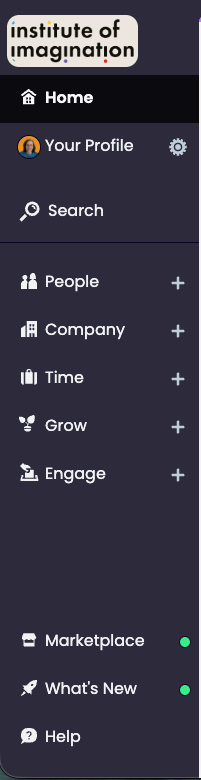
Home
An at-a-glance view of the working week: who is in, off, or working from home, your pending leave requests, and upcoming birthdays and anniversaries.
People
A staff directory. Click anyone’s name to see their contact details, team, and working pattern.
Company
A snapshot of the organisation — iOi’s contact details, office locations, employee perks, and the Staff Handbook download.
Time
The team leave calendar and your time-off overview. This is where you book and manage all leave requests.
3 Quick Guide
Booking time off
Go to Time > Calendar or Time > Overview and click Book time off. In the pop-up, select the time-off type, the date(s), and whether it is a full day, AM only, or PM only. The form shows who will be notified of your request.
Time-off types include Holiday, Sick leave, WFH, and Toil leave. Additional types may appear in the dropdown.
Downloading the Staff Handbook
Go to Company > Overview, scroll to the Documents section, and click the Staff Handbook to open and download it.
Syncing CharlieHR with Outlook
Once set up, approved time off from CharlieHR appears automatically in your Outlook calendar. You only need to do this once.
Step 1 — Get the calendar link
- Log in to CharlieHR and go to Time > Calendar.
- Click Sync calendar in the top-right corner.
- Copy the URL from the Everyone’s Time box.
Step 2 — Add the calendar to Outlook
- Open Outlook in a browser at outlook.office.com and go to your calendar.
- Click Add calendar, then Import calendar, then From web.
- Paste the CharlieHR link into the Link to the calendar field.
- Give the calendar a name (e.g. CharlieHR — Time Off) and click Import.
Step 3 — Check it appears in the desktop app
- Open the Outlook desktop app and go to your calendar.
- Find the CharlieHR calendar in the left-hand panel and make sure the checkbox is ticked.
Once set up, approved time off entered in CharlieHR will appear at the top of your Outlook calendar under the date, alongside other all-day events.