
1 Overview
Microsoft Teams is iOi’s main platform for communication, file sharing, and day-to-day collaboration. It brings together messaging, meetings, and documents in one place, and connects directly to SharePoint, where most of our key files are stored.
Teams is organised around named groups, each linked to a part of iOi’s work. Within each group, channels provide separate spaces for different conversations or workstreams. Most Teams also have a corresponding SharePoint site, making the files stored there accessible directly from Teams.
2 Navigation
Accessing Microsoft Teams
Teams is available in a browser or via the desktop and mobile apps. Sign in at teams.microsoft.com using your iOi Microsoft account credentials.
The interface
The left-hand sidebar is the main navigation. The key areas are:

Activity
A feed of notifications, mentions, and replies across all your Teams and channels.
Chat
One-to-one and small group conversations, plus your Teams and channels listed below in sections: Favourites, Chats, and Teams and channels.
Calendar
Your meetings and scheduled calls.
OneDrive
Your files, including a Meetings view where all recorded meetings are stored.
Teams and channels
Your Teams and their channels are listed under Chat in the sidebar, in the Teams and channels section. Each Team has at least one channel — General — which is open to all members of that Team.
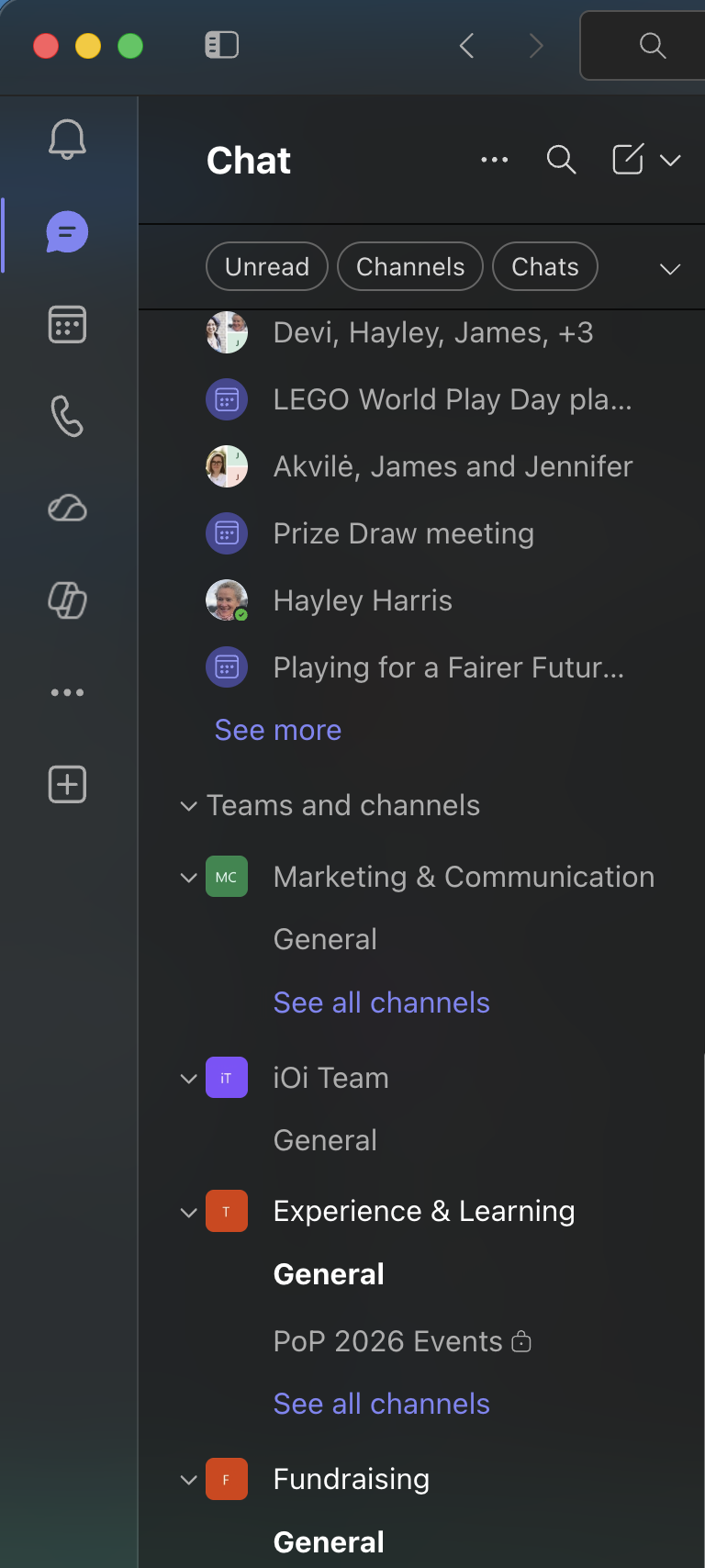
The key Teams you should have access to are:
Experience & Learning
Marketing & Communication
iOi Team
Fundraising
Knowledge
3 Quick Guide
Saving and finding files
Inside every channel you’ll find a Shared tab at the top. This is where files are stored and where you should save anything the team needs to access. It links directly to the SharePoint folder for that channel.
Most channels also have a second tab for files — variously labelled Documents, Docs, or Document Library depending on the channel. This leads to the same underlying SharePoint folder as Shared and can be used interchangeably, but Shared is the consistent one to rely on.
Meetings
You can start or schedule a video call from within any chat or channel by clicking the camera icon, or from the Calendar section. Meetings scheduled in Outlook appear in Teams automatically.
Finding recordings
There are three ways to find a recording:
- From OneDrive — select OneDrive in the sidebar, then browse by Meetings. This shows all recorded meetings in one place.
- From the Calendar — open the past meeting and select View recap.
- From Chat — open the chat thread for the meeting. The recording appears as a thumbnail once it has finished processing.